How AI WorkGuard Helps You Continue Long ChatGPT Conversations
Long ChatGPT conversations can contain valuable work, decisions and project context, but continuing them efficiently becomes harder as they grow. AI WorkGuard for ChatGPT provides practical browser tools for understanding conversation load, preserving important context and continuing work in a cleaner conversation.
Long conversations are useful, but they become difficult to manage
A long ChatGPT conversation may contain weeks or months of work. It can include technical decisions, code changes, research notes, links, screenshots, drafts and instructions that should not be lost.
The problem is not necessarily that the information has disappeared. The problem is that the useful context becomes spread across many messages and becomes increasingly difficult to review, search and continue.
What AI WorkGuard for ChatGPT does
AI WorkGuard for ChatGPT is a desktop browser extension designed to support long ChatGPT workflows. Its tools focus on continuation, conversation awareness, local exports and organization.
The extension does not replace ChatGPT and does not create a separate AI service. It works as a browser-side productivity layer around supported ChatGPT conversations.
Conversation Load
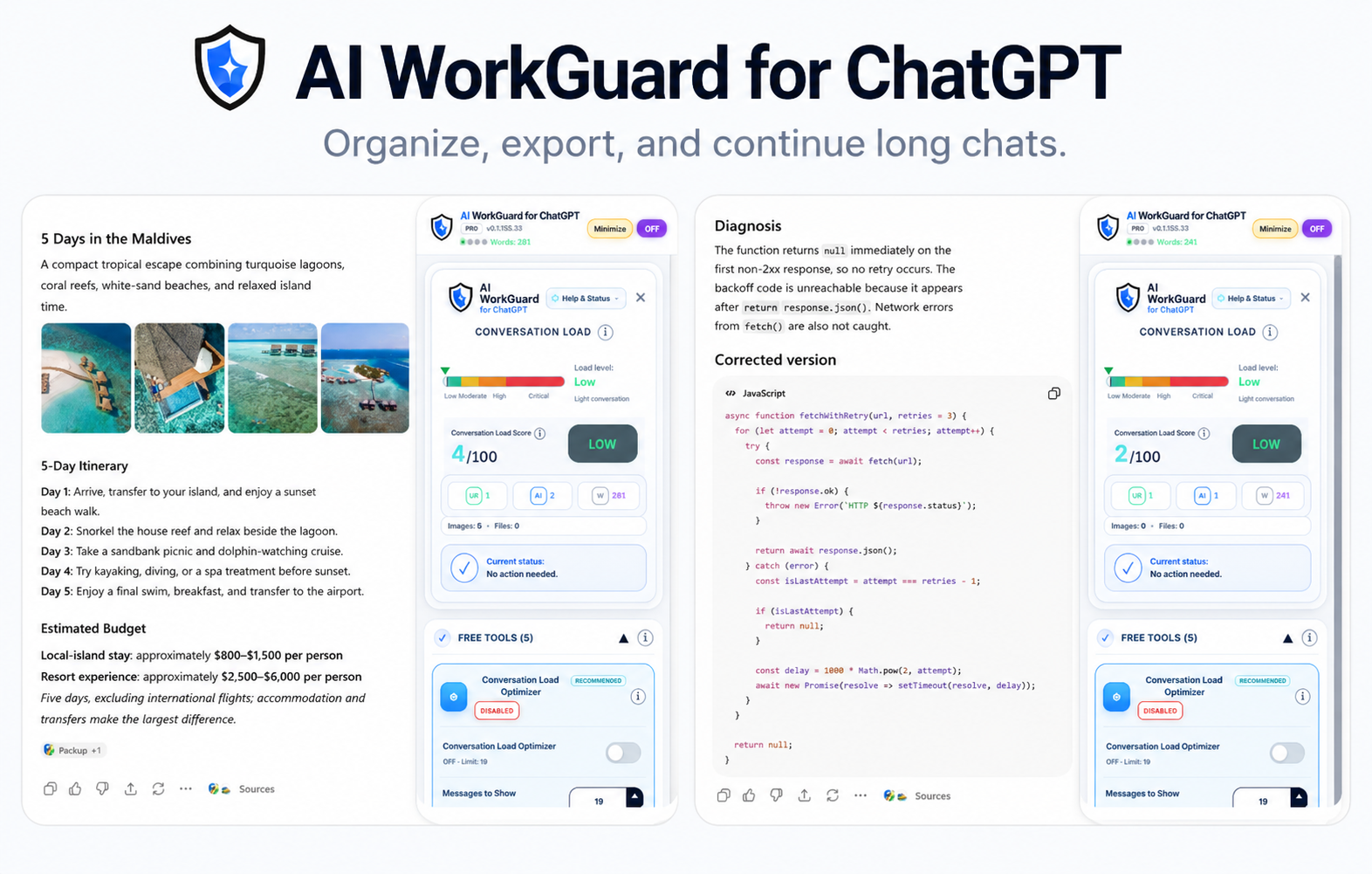
Conversation Load provides an estimate intended to help users understand when a conversation is becoming large and may benefit from a continuation workflow.
It is not a measurement of computer RAM, ChatGPT server memory or the model’s internal context window. It is practical guidance for managing long conversations.
Continuation Handoff
A continuation handoff preserves the useful project context needed by a new conversation. It can include the current status, decisions already made, relevant files or links, warnings and the exact next action.
This helps the next conversation begin from the correct point instead of asking the user to explain the project again from the beginning.
Create Related Chat Automatically
AI WorkGuard can create a related ChatGPT conversation and transfer structured continuation context into it. The related conversation can also be clearly identified in the ChatGPT sidebar.
This provides a faster workflow for moving active work out of a very long conversation and into a clean continuation.
Local conversation exports
Supported conversations can be exported into local files for review, documentation or archiving. Available workflows include plain TXT export and additional structured export formats.
Exported files are generated through the browser and remain under the user’s control.
Search and organization tools
Search tools help users locate information inside the current conversation, while local organization tools help group and manage saved ChatGPT conversations.
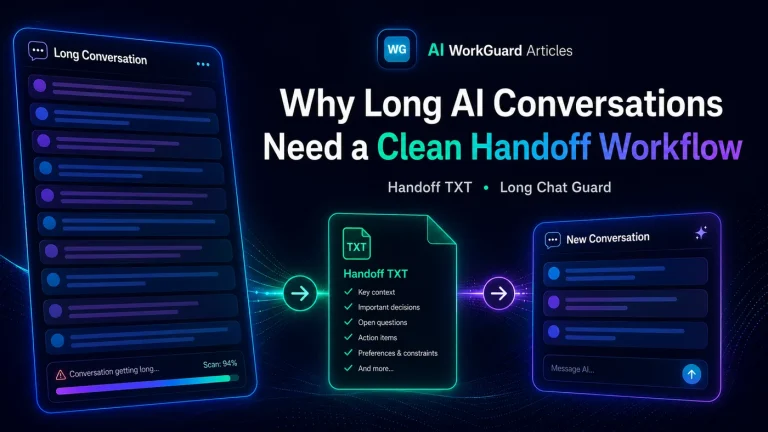
A practical continuation workflow
- Check the conversation Review the current conversation-load information and decide whether the chat is becoming difficult to manage.
- Create a continuation handoff Preserve the project goal, current status, important decisions, references and next action.
- Review the handoff Confirm that the essential context is accurate and that obsolete or irrelevant details have not been carried forward.
- Continue in a fresh conversation Use the handoff in a new ChatGPT conversation or create a related chat automatically.
- Keep the original conversation available The old conversation can remain as historical reference while active work continues in the cleaner chat.
Why a continuation is better than copying everything
Copying an entire long conversation into a new chat often transfers too much irrelevant material. It may carry old drafts, repeated explanations, abandoned ideas and mistakes that should not influence the next stage of the work.
A structured handoff is different. It focuses on what the next conversation actually needs in order to continue correctly.
- The project or task.
- The current working state.
- Important decisions that are already settled.
- Relevant files, paths, URLs or screenshots.
- The next required action.
- Warnings about mistakes or failed approaches that should not be repeated.
Local processing and user control
AI WorkGuard is designed to process supported conversation content locally inside the browser for its extension functions. Conversation content is not uploaded to AI WorkGuard Tools servers for processing.
The user chooses when to create a handoff, when to export files and when to continue in another conversation. The original ChatGPT conversation remains under the user’s control.
Designed for desktop ChatGPT workflows
AI WorkGuard for ChatGPT is designed for desktop browsers. It is available for Chrome and Chromium-based desktop browsers through the Chrome Web Store.
The extension may also be used in compatible Chromium-based browsers, but individual browser behavior can vary as browser and ChatGPT interfaces change.
A cleaner way to continue important work
Long conversations do not need to become permanent containers for every stage of a project. When a conversation becomes difficult to manage, the important context can be preserved and the work can continue in a cleaner environment.
That is the purpose of AI WorkGuard for ChatGPT: help users understand when a conversation is becoming large, preserve what matters and continue the work without starting again from zero.